Fund Deposit Process on Fystack: Secure Digital Asset Deposit Guide

Depositing funds is the first real test of a digital asset custody platform.
On Fystack, deposits are not treated as a simple address copy-paste flow. They are built on workspace isolation, MPC wallet security, and asset-level controls to ensure enterprise teams can deposit funds safely from the first transaction.
This guide follows the exact deposit flow shown in the product walkthrough and explains why each step matters.
1. Create a Workspace to Scope Deposit Operations
All deposit workflows on Fystack start with a workspace.
From the dashboard, teams create a new workspace and name it based on their use case - such as a department, treasury function, or internal project.

This is not just an organizational step.
A workspace defines:
- Which wallets can receive funds
- Which assets are visible
- Which team members can monitor deposits
By scoping deposits to a workspace, Fystack prevents assets from being mixed across teams or environments.
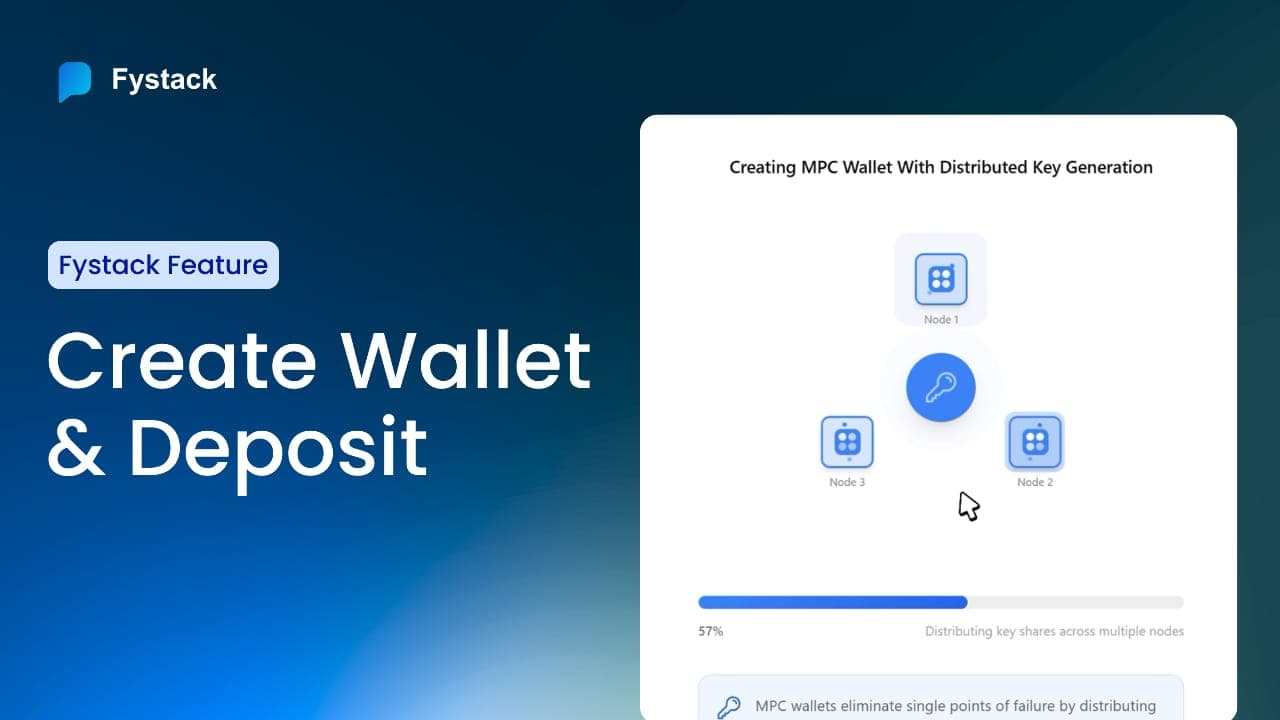
2. Create an MPC Wallet for Secure Deposits
Inside the workspace, the next action is Create Wallet.

For production use, Fystack supports MPC wallets, which distribute signing authority across multiple cryptographic shares. No single private key ever exists.
Why this matters at deposit time:
- Wallet compromise cannot result from a single point of failure
- Deposit addresses are generated from a secure MPC setup
- The wallet is ready for institutional-grade custody from day one
Once created, the MPC wallet becomes immediately active and ready to receive assets.
3. Add Assets to the Wallet
After the wallet is live, teams add the assets they intend to receive.
From the wallet interface:
- Click Add Asset
- Select the asset and the blockchain network

For example, USDC on Base is configured independently from USDC on other chains.
This design ensures deposits are:
- Asset-specific
- Network-specific
- Explicitly mapped to the correct wallet context
Reducing the risk of incorrect or misrouted deposits.
4. Generate a Dedicated Deposit Address
To receive funds, teams select the asset and click Receive.
Fystack generates a dedicated deposit address for that asset and network.
The address can be copied directly or shared via QR code.

These addresses are:
- Generated within the custody platform
- Mapped to the MPC wallet and workspace
- Not reused across assets or networks
This minimizes operational mistakes and simplifies reconciliation.
5. Send Funds from an External Wallet
From an external Web3 wallet or custody system:
- Select the same asset and network
- Paste the Fystack deposit address
- Enter the amount and confirm the transaction
Because deposits are asset- and network-specific, Fystack ensures only valid transactions are recognized.

6. Monitor the Deposit in Real Time
Once the transaction is confirmed on-chain, it appears directly inside the Fystack workspace.

Teams can view:
- Transaction amount
- Timestamp
- Sender and recipient addresses
- Current status
This real-time visibility is built into the custody layer, eliminating the need to rely on external block explorers for operational tracking.
Why This Deposit Flow Scales for Enterprises
Each step in this workflow is intentionally designed to support enterprise custody at scale:
- Workspaces isolate operations
- MPC wallets remove single-key risk
- Asset-level configuration prevents deposit errors
- Built-in visibility improves auditability
Deposits on Fystack are not just about receiving funds.
They are the foundation for secure, compliant, and scalable custody operations.
Have questions about your custody setup?
Share what you are building via the form and explore how Fystack’s MPC wallets, KYT integrations, and consolidation engine fit your architecture.
Not ready yet?
Join our Telegram for product updates and architecture discussions:
https://t.me/+9AtC0z8sS79iZjFl
FAQ
What assets can I deposit into a Fystack MPC wallet?
Fystack supports multiple digital assets across multiple blockchains. Asset availability depends on the blockchain network selected when adding an asset to your MPC wallet. Commonly used assets include stablecoins such as USDC on supported networks. Always ensure the asset and network match before depositing.
Can I deposit funds from any Web3 wallet?
Yes. You can deposit funds into a Fystack MPC wallet from any external Web3 wallet that supports the selected asset and blockchain network. This includes browser wallets and hardware wallets, as long as the asset and network are compatible.
What happens if I send the wrong asset or use the wrong network?
Depositing an unsupported asset or using an incorrect blockchain network may result in lost or unrecoverable funds. Before confirming a transfer, always verify the asset type, blockchain network, and receiving address. Fystack only tracks deposits that match the configured asset and network.
How long does it take for a deposit to appear on Fystack?
Deposit visibility depends on blockchain confirmation times. In most cases, transactions appear in the Fystack dashboard shortly after being confirmed on-chain. You can monitor transaction status directly within your workspace.
Is there a minimum deposit amount?
Minimum deposit requirements depend on the blockchain network and asset used, primarily due to network fees. Fystack itself does not impose a fixed minimum, but very small transfers may be impractical due to gas costs.
Can I generate multiple deposit addresses for the same asset?
Fystack generates a dedicated receive address per asset and blockchain within a workspace. Address behavior may vary depending on wallet configuration, but all addresses are securely managed under MPC architecture.
Why does Fystack recommend using an MPC wallet for deposits?
MPC wallets eliminate single private key exposure by distributing signing control across multiple cryptographic shares. This reduces operational risk and supports secure fund management for teams handling multi-chain or high-value custody workflows.
Where can I see deposit transaction details?
All deposit activity is visible inside your Fystack workspace. Clicking on a transaction shows asset value, timestamp, sender and recipient addresses, and transaction status for full transparency.